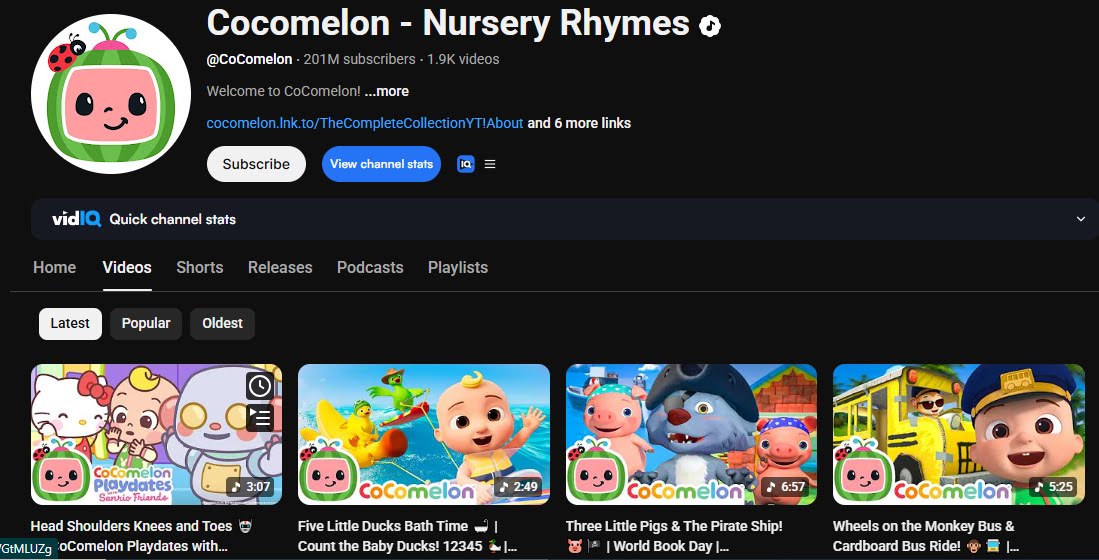
These are not random numbers. 201 million subscribers. 8.7 billion views. 7.4 billion views. 4.7 billion views. The biggest kids channels on YouTube have already cracked a system, and most people have no idea what it actually is. Channels like Cocomelon built empires in a short time, and ChuChu TV crossed nearly 100 million subscribers with a surprisingly small number of videos. So the real question is, do you actually understand what they are doing differently, and more importantly, can you replicate it without spending endless hours creating content manually?
You have definitely seen these videos before. Simple animated nursery rhymes that look almost too basic, yet they pull in millions of views every single upload. Channels with tens of millions of subscribers are doing the exact same thing over and over, and every video hits again and again. This is not luck, and it is not raw creativity. It is a repeatable system built on simple formats, and now that system is being accelerated by AI. The barriers that used to exist, animation, editing, voiceovers, are basically gone. With free AI tools available right now, you can produce unlimited nursery rhyme videos without a team, without expensive software, and without advanced skills.
Here is where most people get it completely wrong. They assume building a channel like this is difficult or that it takes years before anything happens. That is simply false. I have worked with creators who used this exact system and saw results within their first few months, channels under 30 uploads crossing 100,000 subscribers, single videos reaching over 14 million views. These are not complex productions. They are simple cartoon-style videos built on repeatable ideas, and the only difference between those channels and someone starting today is consistency and knowing exactly what works.
In this guide, I am going to show you exactly how to create these videos step by step using free AI tools. No shortcuts, no vague explanations. You will see the actual process broken down so you can replicate it yourself. But you need to stay focused, because if you skip even one step, you will not get the same outcome.
Step 1: Get Your Master Prompt
The first thing you need before anything else is the right prompt. Instead of piecing together multiple prompts for different parts of the video, there is a single master prompt that handles everything from the script to the music to the character design to the scene visuals. One prompt drives the entire production.
To get it,
Click on it and wait about 30 seconds. The prompt will automatically open in a new tab as a Google Doc. Copy the entire prompt and keep it ready because you are going to use it throughout this entire process.
Step 2: Generate Your Topic, Character, and Script Using Claude AI
Open a new tab and go to Claude AI. Paste the master prompt into the input box and click Generate. Claude will immediately produce a list of viral topic ideas for your nursery rhyme video. Browse through the ideas, pick one that feels right, copy it, and paste it into the format box. Click the idea button and Claude AI will then ask you to confirm the character for your video.
Copy the character name Claude suggests, paste it back into the prompt box, and click the drop button. This locks your character in and the system now knows exactly what kind of video it is building. After locking in your character, Claude AI will ask you one more question. It will say, shall I now write the full story and narration script with music prompts. Type yes into the box and click Generate.
Give it a moment to finish. Once it is done, you will see your complete script along with a music prompt placed under each paragraph. For every section of the video you have both the narration and the music direction already paired together. In most cases you will receive 10 paragraphs and 10 music prompts, everything organized and ready to use.
Step 3: Generate Music Using Google Gemini
Now it is time to generate the music. Start by copying the first paragraph of your script along with its music prompt. Open a new tab, go to Google, and search for Google Gemini. Open the first result and once you are inside Gemini, click on the prompt box and look for the tools option. From there, click on the Create Music button.
Once the music tool opens, paste your first paragraph along with the music prompt into the box and click Generate. Gemini will start creating the music for that section of your video. Once it is ready, you will notice it already includes narration as well. Click the download button, select Audio Only, and save it as an MP3 file.
Now go back to Claude AI, copy the next paragraph along with its music prompt, return to Google Gemini, paste it into the box, and click Generate. Your second track will be ready in moments. If any track does not come out the way you want, just click the Regenerate button and Gemini will create a new version for you. Repeat this process for every paragraph Claude AI gave you, copy the paragraph, paste it into Gemini, generate, and download the MP3. Do this one by one until you have all ten tracks downloaded. The entire process is free and you can generate all ten music files directly inside Google Gemini without paying for anything.
Step 4: Generate Character Images Using Pippit AI
Once all your music is downloaded, go back to Claude AI. It will ask you, do you want character design prompts. Type yes and click Generate. Claude will immediately create a detailed image generation prompt for each character that appears in your video. In most cases you will receive four separate prompts, one for each character, and each prompt is already formatted and ready to be pasted into an image generation tool.
The tool we are going to use for this is Pippit AI. The link is in the description below. Click on it, sign up, and log in. You will receive free credits automatically when you create your account. Once you are inside, click on the image option and paste your first character prompt into the box. Go to the model section and select the Nano Banana model. Then go to the aspect ratio section and choose the one by one ratio. Click Generate and wait for your first character image to be created.
Once it is ready, go back to Claude AI, copy the next character prompt, return to Pippit AI, paste it in, and click Generate again. Repeat this for all remaining characters. Once all four images are generated, download them one by one. These character images are going to be used as a reference in every single scene you generate, so make sure you have all four saved before moving to the next step.
Step 5: Generate Scene Images Using Flow AI
Now go back to Claude AI and it will ask you, do you want cinematic scene prompts. Type yes and click Generate. Claude will start creating both image prompts and video motion prompts for every moment in your story, anywhere between 15 to 20 fully detailed scenes. Give it a moment to finish and all your scene prompts will be ready.
To generate the actual scene images, we are going to use Flow AI, where you can generate images completely free. Go to Flow AI, sign up, and log in. Once you are inside, click on New Project. A new interface will open. Click on the settings button at the bottom, select image, choose your model, and set the aspect ratio to 16 by 9, which is the best format for YouTube videos.
Click on the plus icon, then click the upload image button, and upload all four character images you generated from Pippit AI. These will serve as a visual reference so your characters stay consistent across every scene. While the characters are uploading, go back to Claude AI and copy the first image prompt. Make sure you are copying only the image prompt and not the video motion prompt. Go back to Flow AI, confirm that all four character images are uploaded in the reference box, paste your image prompt, and click Generate. Flow AI will use your characters as a reference and build your first scene image.
Once the first image is ready, upload the four characters again into the reference box for the next generation. Go back to Claude AI, copy the next image prompt, paste it into Flow AI, and click Generate. Repeat this exact process for every scene prompt. Every single time you generate a new image, make sure the four character images are uploaded as a reference so that your characters stay consistent throughout the entire video. Once all your scene images are ready, download them one by one from Flow AI.
Step 6: Convert Images Into Video Clips Using Meta AI
To convert your images into videos, we are going to use Meta AI, which is completely free. Go to Meta AI and create your account. Once you are inside, click the plus icon and upload your first image. Then go back to Claude AI and copy the video motion prompt that matches that exact image. Paste the motion prompt into Meta AI and click Generate. Your image will start converting into a video clip.
Once the first clip is ready, upload your next image, go back to Claude AI, copy the matching motion prompt, paste it into Meta AI, and click Generate again. Repeat this same process for every image until all of them have been converted into video clips. Once everything is done, download all the video clips from Meta AI one by one.
Step 7: Edit and Export Your Final Video Using CapCut
Now it is time to bring everything together. Open CapCut and import all the video clips generated by Meta AI. Also import all the music tracks generated by Google Gemini. Start by placing the music on the timeline first, then arrange your video clips on top of the music so everything lines up properly. From here you can make any additional edits you want based on your own preference. Once your video is ready, click the Export button and your completed nursery rhyme video is done.
The Bottom Line
This entire process is free, repeatable, and scalable. You are not doing anything complicated. You are following a system, the same kind of system that built Cocomelon, ChuChu TV, and dozens of other channels generating billions of views. The tools have changed, the barrier is gone, and the only thing standing between you and a growing channel is whether you actually execute. One video at a time, one upload at a time, the results will follow.