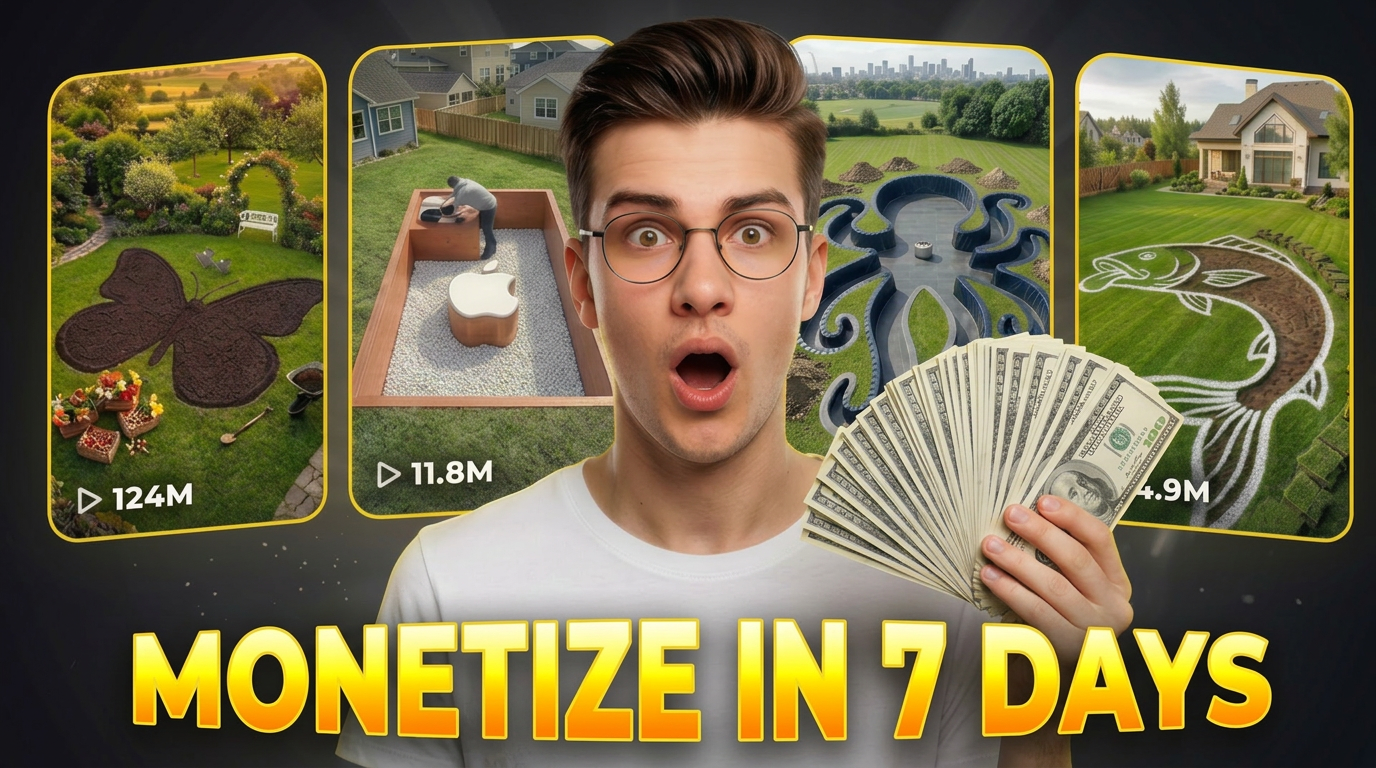
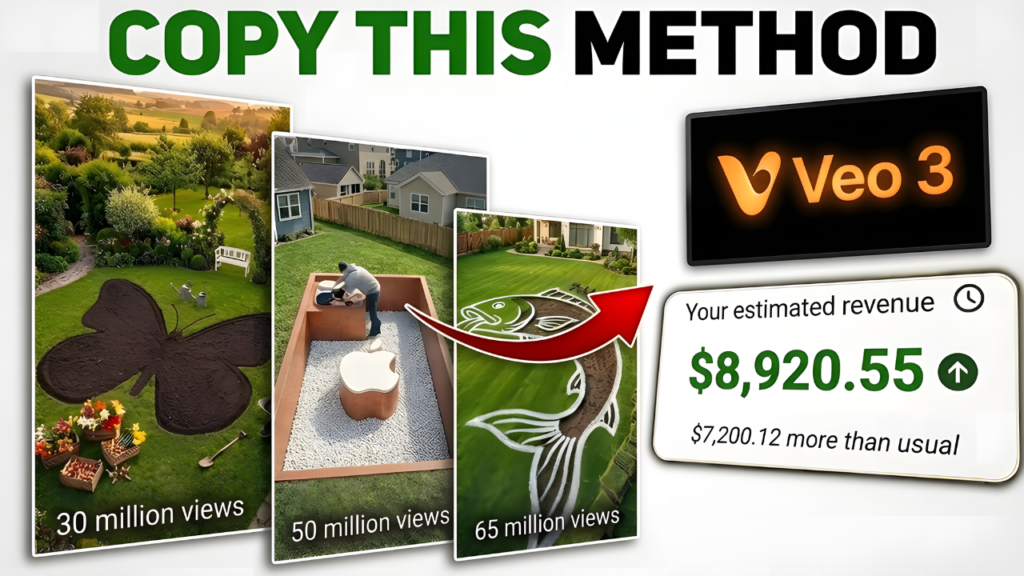
Short-form videos are dominating platforms like YouTube Shorts, TikTok, and Instagram Reels, and one type of content that is currently going extremely viral is backyard transformation time-lapse videos. Many creators are gaining millions of views with these simple transformation clips.
In this guide, you will learn how to create viral backyard transformation shorts using AI tools such as ChatGPT, Higgsfield AI, and CapCut. By following this step-by-step workflow, you can easily create high-quality AI videos that have strong viral potential.
Why Backyard Transformation Videos Go Viral
Backyard transformation videos are highly engaging because viewers love watching before-and-after progress. These videos are satisfying, visually appealing, and perfect for short-form content platforms.
Many creators are already getting massive results from this format. Some pages with only a few followers have videos reaching millions of views, and some clips have even crossed 100 million views.
The good news is that these videos are surprisingly easy to create with AI tools.
PROMPT LINK
Step 1: Generate Viral Video Ideas with ChatGPT
The first step in creating a viral backyard transformation video is to generate a strong video idea.
To do this, you need a prompt. Once you have the prompt, open ChatGPT and paste it into the chat box.
After clicking generate, ChatGPT will provide multiple viral backyard transformation video ideas. If you do not like the suggestions, you can regenerate them until you find a concept that fits your video style.
Choose one idea from the list. This will become the main concept for your video.
Step 2: Generate Image and Video Prompts
After selecting your idea, the next step is to generate the image prompts and video prompts.
Return to your Google Doc containing the prompts and copy the second prompt. Paste it into ChatGPT and include your selected video topic.
You can also customize the prompt by choosing:
- Total video duration
- Number of scenes
- Transformation stages
Once you generate the prompt, ChatGPT will create a complete set of prompts that you will use to generate the images and videos.
Step 3: Generate Images Using Higgsfield AI
Now it’s time to generate the visuals for your transformation video.
Open Higgsfield AI and sign up if you haven’t already. Once inside the platform, click the Create Image button.
Paste your image prompt into the prompt box. Then choose an image generation model. Higgsfield offers several models such as:
- Nano Banana Pro
- Nano Banana 2
- Seedream 4.5
- Seedream 5.0
- Higgsfield Soul 2.0
For high-quality results, Nano Banana Pro or Nano Banana 2 works very well.
Next, select the aspect ratio 9:16, which is ideal for YouTube Shorts, TikTok, and Instagram Reels.
Click Generate and wait a few seconds for the AI to create your first image.
Step 4: Maintain Visual Consistency
Once your first image is generated, download it to your device.
Next, remove the previous prompt and upload the downloaded image as a reference image. This ensures the next generated image maintains the same environment and visual style.
Now return to ChatGPT and copy the next image prompt.
Paste that prompt into Higgsfield AI and generate the next scene.
Repeat this process until all transformation stages are generated.
If an image does not look right, you can simply regenerate it with one click.
Step 5: Convert Images into AI Videos
Once all images are ready, you can convert them into animated clips.
In Higgsfield AI, click the Video option and select Create Video.
Scroll down to the model selection section. Several AI video models are available, including:
- Kling 3.0
- Minimax Hailuo AI
- Google VEO
For the best results, choose Kling 3.0.
Next, set the video duration in seconds and keep the aspect ratio at 9:16.
Upload your first image as the start frame.
Then return to ChatGPT and copy the video prompt corresponding to that image.
Paste the prompt into the prompt box and click Generate. Higgsfield will then create the animated video clip.
Repeat this process for all images until every scene has been converted into a video clip.
Step 6: Edit Your Video in CapCut
After generating all the video clips, the final step is editing.
Open CapCut and create a new project. Click Import and upload all the clips you generated.
Drag the clips onto the timeline in the correct order to create the transformation sequence.
You can also enhance your video by adding:
- Smooth transitions
- Visual effects
- Background music
- Speed adjustments
Once your video looks complete, click Export and save it to your device.
Final Result
Congratulations! You now have a viral-style backyard transformation short ready to upload to platforms like:
- YouTube Shorts
- TikTok
- Instagram Reels
By using AI tools like ChatGPT and Higgsfield AI, you can produce high-quality viral content much faster than traditional video production methods.
Final Thoughts
AI is rapidly transforming content creation. With the right workflow, anyone can create engaging and viral short-form videos without expensive equipment or advanced editing skills.
If you consistently create videos using this method, you can build a growing audience and potentially reach millions of views.
Start experimenting with different transformation ideas and let AI help you create your next viral video.