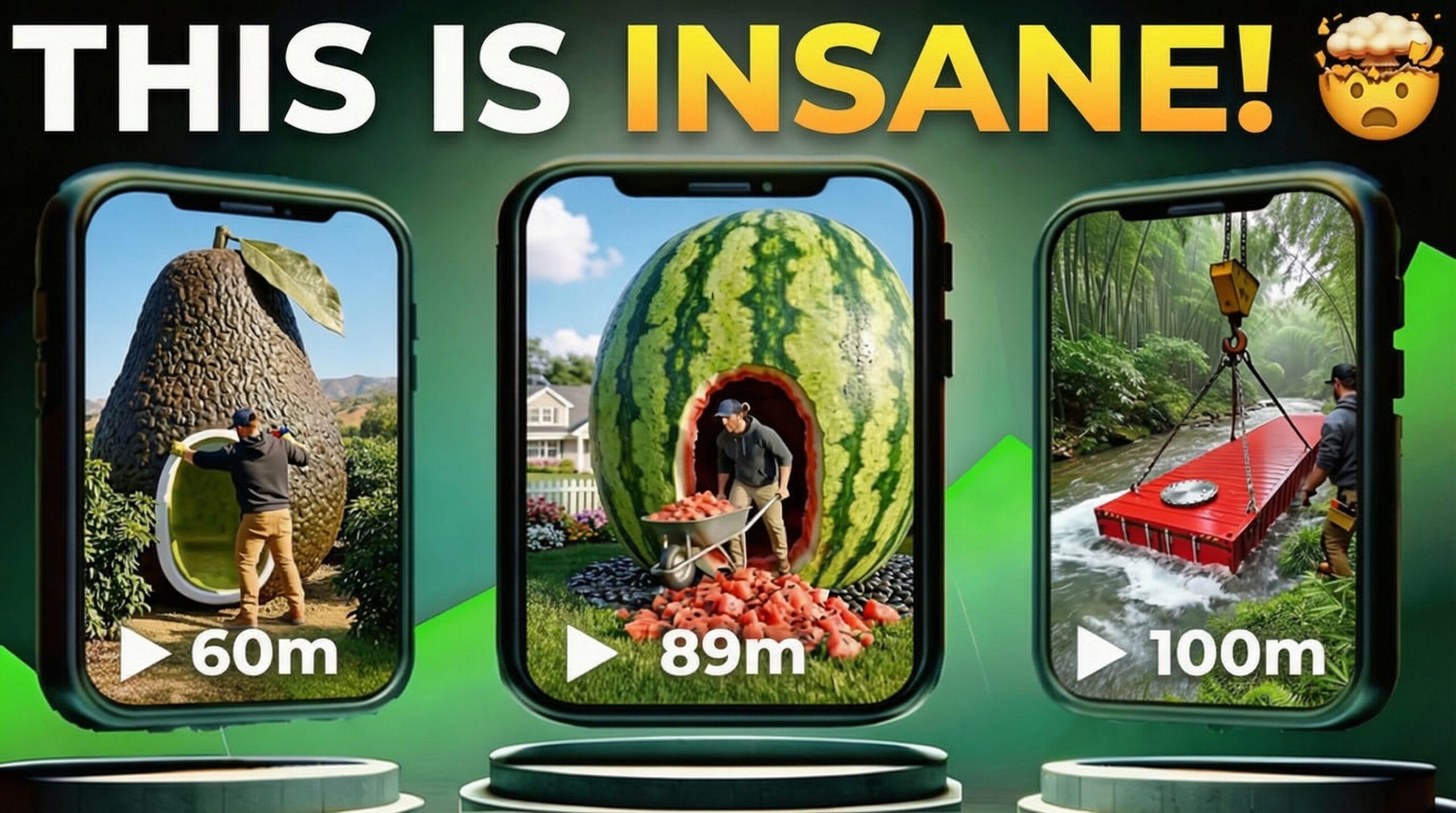
AI-generated content is changing the way creators make videos on YouTube. Recently, many channels have started gaining millions of views using simple AI bunker time-lapse videos. These videos look cinematic, engaging, and surprisingly easy to create using modern AI tools.
In this guide, I will show you step-by-step how to create viral AI bunker time-lapse Shorts using ChatGPT and Wondershare Filmora. By following this method, you can produce high-quality videos without filming anything yourself.
Why AI Bunker Time-Lapse Videos Are Going Viral
Many YouTube channels are achieving massive success with AI-generated time-lapse content. For example, a channel called Home Magic has gained hundreds of millions of views with relatively few videos.
One of their videos alone reached over 100 million views, and several others consistently receive millions of views within days.
What makes these videos powerful is that they are:
- Visually engaging
- Simple to produce
- Perfect for YouTube Shorts and viral content
- Created entirely using AI tools
Now let’s look at how you can create these videos yourself.
Step 1: Generate Viral Video Ideas Using ChatGPT
The first step is choosing a viral topic for your AI bunker video.
To do this, open ChatGPT and use a prepared prompt designed to generate viral video ideas.
After entering the prompt, ChatGPT will generate 10 viral topic ideas related to bunker time-lapse videos.
If none of the suggestions seem interesting, simply regenerate the response until you find a topic that works.
Once you select a topic, you will move to the next step.
Step 2: Generate Image Prompts for the Video
After selecting a topic, you need to create image prompts for each scene of your video.
Copy the second prompt from your document and paste it into ChatGPT.
Replace the example video details in the prompt with the topic you selected earlier.
Once you click generate, ChatGPT will provide:
- Image prompts for every scene
- Video prompts for animation
These prompts will be used to generate your AI visuals.
prompts Link
Step 3: Generate AI Images in Filmora
Next, open Wondershare Filmora.
Download and install the software, then open it and click New Project.
Inside the editor, go to:
Stock Media → AI Media
Here you will see several AI tools including:
- Image to Video
- Text to Video
- AI Image Generator
Click on AI Image.
A prompt box will appear where you can paste your first image prompt from ChatGPT.
Choose your preferred model (for example Nano Banana 2), then set:
Aspect Ratio: 9:16
Resolution: 1080p
Click Generate and wait for your image to be created.
Step 4: Maintain Scene Consistency
After the first image is generated, download it and add it to the timeline.
Then take a screenshot of the image using the camera icon in Filmora.
This screenshot will help maintain character and scene consistency for the next images.
Upload the screenshot into the AI Image generator again and paste the second image prompt.
Generate the next image.
Repeat this process for every scene until all images for the video are created.
Step 5: Convert Images into Video Clips
Once all images are ready, the next step is converting them into video clips.
Go to:
AI Media → Image to Video
Select the VEO 3.1 model.
Upload the screenshot of the first image and paste the video prompt from ChatGPT.
Set the aspect ratio to 9:16 and click Generate.
Filmora will create a short animated clip from your image.
Repeat this process for every image until all clips are generated.
Step 6: Edit and Arrange the Clips
Once all clips are ready, add them to the timeline in Filmora.
Arrange them in the correct order to form your complete video.
To improve your video, you can add:
- Transitions between clips
- Background music
- AI sound effects
- Captions and subtitles
- Visual effects
These additions help make your video more engaging and professional.
Step 7: Export Your Final Video
After finishing the editing process, click the Export button.
Choose a name for your video and export it in high quality.
Your AI bunker time-lapse video is now ready to upload to YouTube Shorts.
Final Thoughts
AI tools have made it easier than ever to create viral YouTube content without filming or expensive equipment.
By combining ChatGPT for prompts and Filmora for AI video generation, you can create stunning bunker time-lapse videos that have the potential to reach millions of viewers.
If you stay consistent and experiment with different ideas, this strategy can help you build a successful faceless YouTube channel using AI.