If you have ever looked at a successful YouTube channel and wished you could replicate its style, its format, and its results, I am about to show you exactly how to do that, completely for free, using nothing but Claude Code AI. No paid software, no downloads, no complicated setup. Just your browser and a method that actually works.
I discovered a way to clone literally any YouTube channel, whether it is stickman animations, psychology content, motivational videos, rap channels, storytelling, or any other niche. The size of the channel does not matter either. You can clone a channel with millions of subscribers just as easily as a smaller one. And the entire process costs you nothing.
You have probably watched dozens of YouTube gurus telling you to buy this tool, install that software, and follow some 47-step process that never actually delivers results. This is different. Everything in this method happens inside Claude Code AI, which is 100 percent free and runs directly in your browser. By the time you finish reading this post, you are going to have a complete step by step system for cloning any YouTube channel and producing content that matches its tone, style, pacing, and visual identity perfectly.
Step 1: Get the Ready-to-Use Prompt System
The first thing you need is the prompt system I have already built for you. You can find the link to this prompt right here on givenprompt.com in the description of this post. Click the link, go to the page, and copy the entire prompt. It is a long prompt, and that length is intentional, because every detail inside it is what gives Claude AI the instructions it needs to analyze and replicate any channel you choose.
Once you have copied the prompt, open your browser and go to Claude AI. Paste the prompt directly into the chat box and hit generate. Claude AI will then ask you one simple question: which channel do you want to clone, and it will ask you to provide the channel link.
Step 2: Choose a Channel to Clone and Collect Transcripts
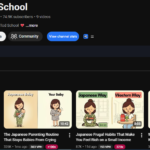
Go to YouTube and find the channel you want to replicate. For example, I used a channel called Simple Actually, which has only 116 videos but already has 341,000 subscribers and pulls in millions of views per video. That kind of performance is exactly what makes a channel worth studying and cloning.
Copy the link of that channel from your browser, go back to Claude AI, paste the link into the chat, and hit generate. Claude AI will then ask you for the next piece of information. It will ask you to provide two to three complete video transcripts from that channel, and this is the step that makes the whole system work.
To get the transcripts, go back to YouTube and open the most popular video on that channel. Scroll down to the description section and click on the option that says show transcript. The transcript will appear on the right side of your screen. Click copy transcript and copy the entire thing. Then open a blank Google Doc and paste it in. Repeat this process for three to four of the most viewed videos on that channel, pasting each transcript into the same Google Doc and numbering them so everything stays organized. Once all your transcripts are inside the document, press Control A to select everything, right click and copy, then go back to Claude AI, paste everything into the prompt box, and hit generate.
Step 3: Generate Topic Ideas and a Full Video Script
After you paste the transcripts, Claude AI will ask if you already have a topic in mind. If you do not, simply type give me 10 topic ideas into the prompt box and hit generate. Claude will instantly produce a list of topic ideas that are specifically tailored to the style and niche of the channel you are cloning. Pick the one that excites you the most, copy it, paste it back into the prompt box, and click generate again.
Claude AI will now combine that topic with everything it learned from the transcripts and build a complete content structure that mirrors the format of your target channel. Once that structure is ready, type now give me the full script and hit generate. Claude AI will write you a complete word for word video script that matches the tone, the pacing, the storytelling style, and the energy of the original channel. Copy that finished script, open a new Google Doc, and paste it there so you have it saved and ready for production.
Step 4: Build the Visual Identity
Go back to Claude AI and type YES to confirm and move to the next step. Claude is now going to ask you to upload three to five visual samples from the channel you are cloning. These are not thumbnails. These are actual frames taken from inside the videos of that channel. Go back to YouTube, open a few of the most popular videos, and take three to five screenshots that best represent the visual style of that channel, the colors, the scene setup, the overall look and feel.
Upload those screenshots into Claude AI and hit generate. Claude will study every image and identify the exact visual style of that channel. Based on that analysis it will build a complete visual formula aligned with your script. It will then ask if you want ready made image prompts generated for every scene in your script. Type YES and generate. Claude will produce detailed image prompts for every single section of your script, each one designed to match the visual style of the channel you are replicating.
Step 5: Generate Your Images for Free Using Pippit AI
Now it is time to bring those image prompts to life. The free tool you need for this is Pippit AI, and the link is available right here on givenprompt.com. Sign up and log in using the link on this page because you will receive free credits just for signing up through that link.
Once you are inside Pippit AI, click on the image option and you will see a prompt box on screen. Go back to Claude AI, copy your first image prompt, come back to Pippit AI, paste it into the box, choose any model you prefer, set your aspect ratio to nine by sixteen for vertical video format, and hit generate. Your first image will be ready in seconds. Repeat this exact process for every image prompt Claude gave you. Once all your images are generated, click the download button on each one and save them to your device. There is no watermark on any of them. Keep all your images saved in one folder because the next step is converting them into video.
Step 6: Convert Images into Videos for Free
Go back to Claude AI one more time. It will ask you whether you want video motion prompts generated for each image. Type YES and generate. Claude will immediately create motion prompts for every image, describing exactly how each one should move and animate when converted to video.
Now open your browser and come back to givenprompt.com. Find the specific post shown on the page, click on it, scroll down, and click on the option that says free AI video tool link. This will take you to a free video generation tool from Google. Use the motion prompts Claude gave you to convert each of your images into smooth moving video clips, completely free, with no software required.
The Complete System in One Place
What you have just read is a complete end to end system for cloning any YouTube channel using nothing but free tools. You start with a powerful prompt system, feed Claude AI the transcripts and visuals of your target channel, and it builds everything for you, the script, the content structure, the image prompts, and the video motion prompts. You then use Pippit AI to generate your images and the free Google video tool to bring them to life.
Every link and resource mentioned in this post is available right here on givenprompt.com. Bookmark this page, share it with anyone who wants to start or grow a YouTube channel, and come back whenever you need a refresher on any step of the process.