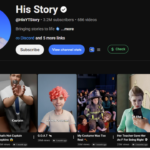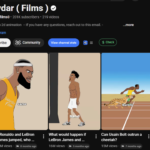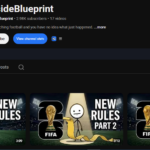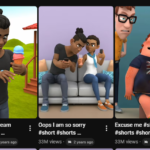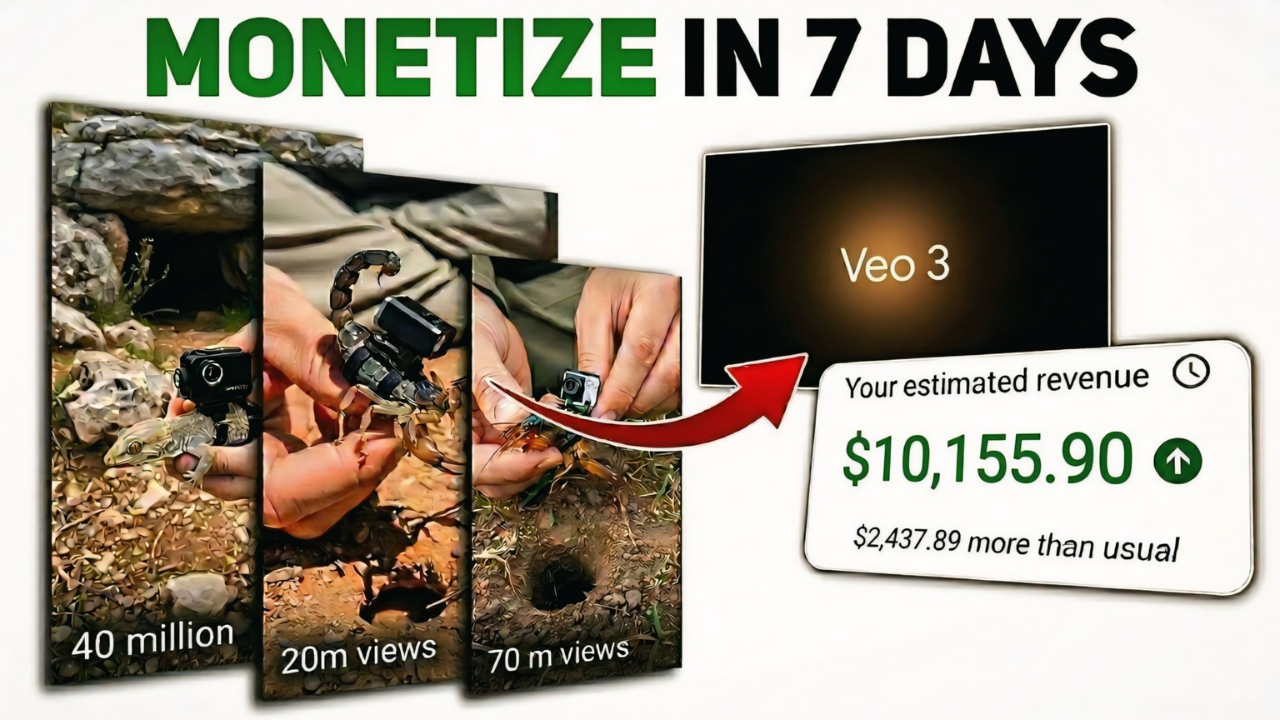
YouTube is constantly evolving, and new content ideas appear every year. Recently, a secret AI YouTube niche has started going viral, gaining millions of views with very simple videos. Many small channels are uploading just a few videos and already receiving millions of views and thousands of subscribers.
The interesting part is that these videos are extremely simple to create. They show an animal’s point of view (POV) while moving through tunnels or environments, and the entire video can be generated using free AI tools. In this guide, you will learn how to create these viral videos step-by-step.
Step 1: Generate Animal Video Ideas Using ChatGPT
The first thing you need is a prompt to generate video ideas. You can copy the ready-made prompt and paste it into ChatGPT. Once you click the generate button, ChatGPT will produce a list of different animal ideas you can use for your POV videos.
From that list, simply choose the animal you want to use for your video concept.

Step 2: Create the Image for the Video
After selecting your animal, copy the image prompt generated by ChatGPT. Then go to an AI image generation website. In this example, you can use Pippit AI, which produces very high-quality images.
Once you open the website:
- Click on the Image option
- Paste the prompt into the prompt box
- Select any model you prefer
- Choose the 9:16 aspect ratio for vertical video
- Click Generate
After a few seconds, the AI will create a high-quality image. Download the image in PNG format and save it to your device.
Step 3: Convert the Image into a Video
Now you will convert the image into a video using Flow AI.
Follow these steps:
- Open Flow AI
- Click Create with Flow
- Start a New Project
- Click the Upload button and upload the image you downloaded
After uploading the image, open the settings, select video mode, and choose the 9:16 aspect ratio.
Next, go back to ChatGPT and copy the second motion prompt. Paste that prompt into the Flow AI prompt box and click Generate.
The AI will now convert your image into a short video clip.
prompt link
Step 4: Generate the Next Video Scenes
Once the first clip is ready, play it and take a screenshot of the last frame of the video. Save that screenshot to your device.
Now upload that screenshot again into Flow AI and paste the next motion prompt from ChatGPT. Click Generate and the AI will create the next scene.
You simply repeat this process:
- Generate a video clip
- Screenshot the last frame
- Upload the screenshot
- Paste the next motion prompt
- Generate the next clip
By repeating these steps, you can generate multiple scenes and create a complete animal POV video.
Step 5: Download All Video Clips
After all scenes are generated, download each video clip in high quality and save them to your device.
These clips will be used in the final editing step.
Step 6: Edit the Video Using CapCut
For editing, you can use CapCut.
Open CapCut and follow these steps:
- Create a new project
- Click Import and upload all the clips
- Drag the clips onto the timeline
- Arrange them in the correct order
Place the first clip at the beginning, then add the second and third clips so the video flows smoothly.
You can also add text, captions, or interesting facts to make the video more engaging.
Once everything looks good, click Export to create your final video.
Final Thoughts
This AI YouTube niche is growing rapidly and has already produced videos with millions of views. The best part is that you don’t need expensive equipment or advanced editing skills. With the help of free AI tools, you can create engaging videos in a short amount of time.
If you stay consistent and continue uploading content in this niche, you may also be able to grow your YouTube channel quickly.