86 Million Views in One Week — The DIY Cement Planter AI Video Formula Anyone Can Copy
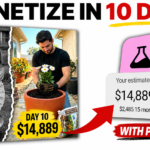
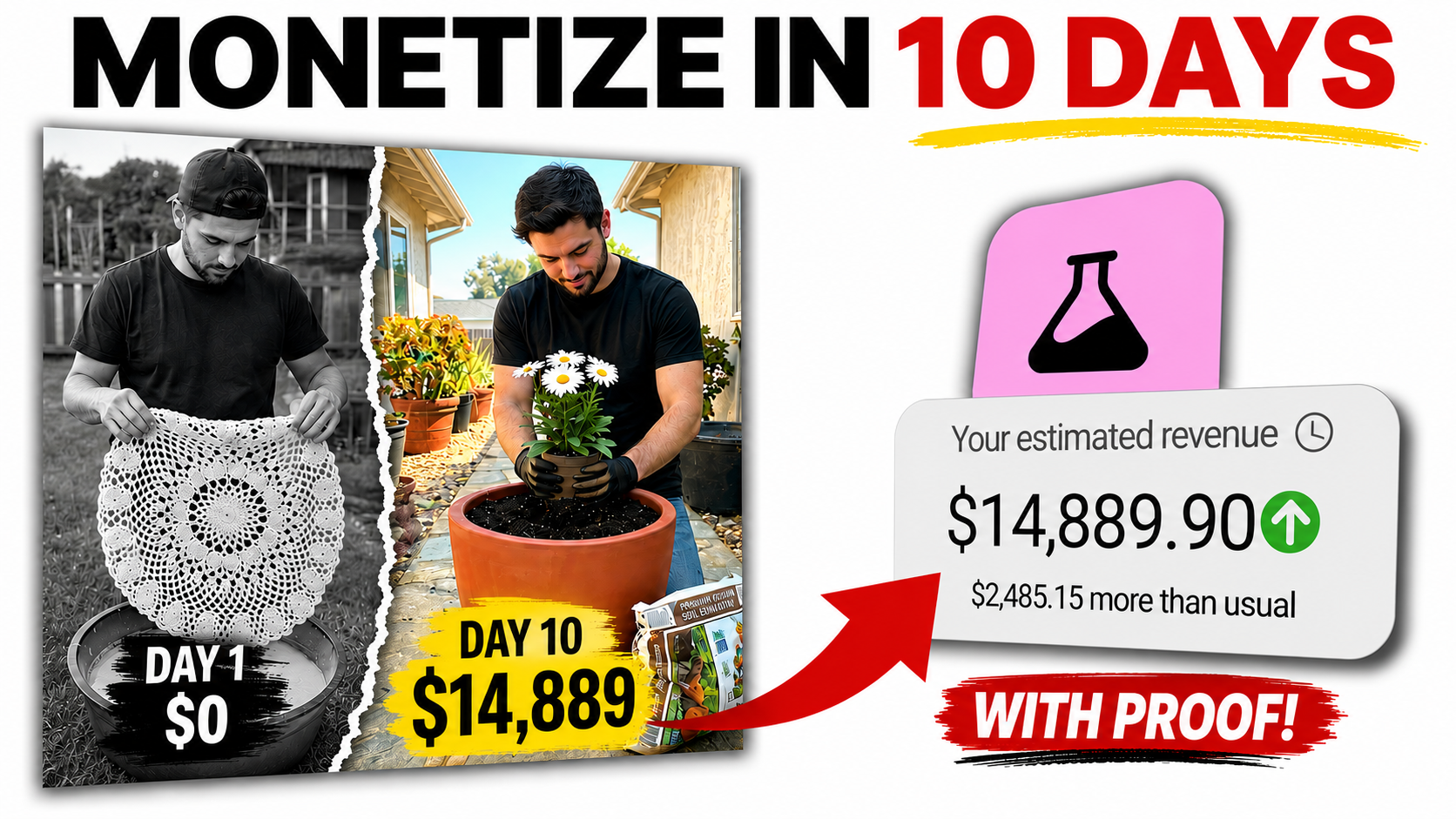
I’m going to be honest with you — when I first saw this, I thought it was fake. I refreshed the page three times. 86 million views. One week. A channel with only 40 videos. But it’s real, and I’m going to prove it to you right now.
“The Niche Is Saturated” — Here’s Why You’re Wrong
I already know what’s going through your head. You’re thinking this niche is saturated, everyone’s already doing it, and you’ve missed the wave. That’s exactly what I thought too.
But here’s what the data is actually showing — DIY cement planter videos are not slowing down. They are speeding up. New channels with zero subscribers, zero following, zero experience are posting these videos and waking up to millions of views. This is not a trend that’s dying. This is a trend that is just getting started.
And the best part? The video I’m about to walk you through was made with no camera, no studio, and no money spent. Just free AI tools and a simple workflow that anyone can follow — including you.
By the end of this post, you will have every single tool, every single step, in the exact order you need — so you can post your first video this week.
The Free Tools You’ll Need
Before we get into the steps, here’s everything you’ll use. Every single tool on this list is completely free:
- GivenTPrompt.com (for the master prompt)
- Claude AI (free version)
- Flow AI (free image generation)
- Veo3 (free video generation)
- CapCut (free video editing)
- Google Drive (free export and storage)
No paid subscriptions. No credit card. Nothing to buy.
Step 1 — Get the Master Prompt
The first thing you need is the right prompt. Open Google and go to giventprompt.com. Open the first post and look for the prompt link inside. Click on it — this will open a Google Doc with the full master prompt. It’s a long one, but that’s the point. This single prompt is what drives the entire video creation process from start to finish. Copy the whole thing.

Step 2 — Generate Your Prompts with Claude AI
Once you have the master prompt copied, head over to Claude AI. We’re using the free version — no paid subscription needed.
Paste the prompt into Claude AI and hit Generate. Claude will immediately start asking you a series of questions to customize your video. Answer them one by one.
The first question is your character selection. You’ll get three options: male character, female character, or your own custom character. If you want to use yourself or a specific character, click Use My Reference Character and move to the next step.
Next, choose your location. Claude gives you several options — backyard, garden, side path, small garden corner, and more. Select whichever fits the style of video you want to create.
After that, it asks you to choose your plant. You can pick anything here. For this example, I went with Rose — but choose whatever works for your video.
The final question is your plant color. Pick any color you like. There’s no wrong answer.
Once you confirm everything, Claude AI takes all your inputs and automatically generates image prompts and video prompts for your entire video. At this point, just wait and let it do the work.
Claude will produce 11 to 12 image prompts and matching video prompts, all ready to use. We’ll work through these in two stages — first generate all the images, then use those images to generate the video clips.
Step 3 — Generate Your Images with Flow AI
Copy the first image prompt from Claude. Now open Flow AI and click New Project.
Before you generate anything, click the Settings button first. Set your aspect ratio to 9:16 since we’re creating vertical video content for YouTube Shorts, TikTok, and Instagram Reels.
After setting the aspect ratio, click the plus icon and hit Upload Image. This is where you upload your reference character image — the same one you selected at the beginning when Claude asked about your character. Upload it here.
Now paste the first image prompt into the prompt box and hit Generate. Give it a moment — and there it is. Your first high quality AI-generated image is ready.
Now go back to Claude AI and copy the second image prompt. Keep this in mind — every image prompt has a video prompt sitting directly underneath it. Do not copy the video prompt yet. Just the image prompt for now. We’ll come back to those in the next step.
Head back to Flow AI, upload your reference image again, paste the new image prompt, and hit Generate. Your second image will start generating. Repeat this exact process for every image prompt Claude gave you — one by one, same steps every time.
Once all your images are generated, it’s time to download them. Look for the three dots in the corner above each image, click on them, and select download. Make sure you choose HD or Upscale quality. Do not download in original quality — the resolution will not be sharp enough for the final video. Do this for every single image until they’re all saved to your device.
Step 4 — Turn Your Images into Video Clips with Veo3
Go back to giventprompt.com, open the post, and scroll down until you see the free AI video tool link. Click on it — this takes you directly to Veo3, the video generation tool we’re using. It’s completely free, and this is where all your images get turned into high quality video clips.
Click New Project, then Start New Video. Set your aspect ratio to Portrait since we’re making vertical content. Then click on the VEO option and the editor will open in front of you.
On the right side at the top, click Create from Scratch, then select Animate an Image. A box will appear — click Add Image and upload your first image, the one you downloaded from Flow AI.
Now go back to Claude AI and copy the first video prompt. Head back to Veo3, paste the video prompt into the prompt box — this sits directly above the image you just uploaded. Hit Generate and wait for your video clip to render.
Once the video is ready, click on it. It will move into the tab shown at the top of your screen. From there, click the Insert button to add it to your timeline. After it’s added, click the plus icon at the end of the timeline to create a new scene. Then delete the preview image and frame from that scene.
After deleting the preview, click Add Image again and upload your next image. Go back to Claude AI, copy the video prompt that matches this image, paste it into the prompt box, and hit Generate. Once the video is ready, insert it into the timeline the same way as before.
Repeat this process — image by image, prompt by prompt — until all your clips are added to the timeline.
Now here’s something important. Veo3 has a free usage limit, so you may hit a generation cap before all your videos are finished. Don’t worry — there’s a simple way around it. Click the Share button in the top corner, then select Export to Drive. A link will open — click Open Link, then Download to save your progress to your device.
Now open a new Gmail account in your browser and log back into Veo3 with the new account. Redo the same settings, upload your remaining images, paste the matching video prompts, and keep generating. Once all remaining clips are done, export again and save the final clips to your device.
By repeating this process across accounts, you can convert every single image into a video without spending anything.
Step 5 — Edit Your Final Video in CapCut
All your video clips are now ready. It’s time to bring them together and edit the final video.
Open CapCut and import all the clips you generated into a new project. Once they’re on the timeline, go through each one and watch them properly before making any changes.
To make the video more engaging, slightly increase the speed of each clip. Click on a clip, find the Speed option on the right side panel, and bump it up just a little. Do this for every clip on the timeline. It makes the whole video feel more dynamic and keeps the viewer’s attention locked in. While you’re at it, trim out any part of any clip that doesn’t look right.
Now look at the bottom of your clips — you’ll notice a Veo3 watermark. To remove it, click on the clip in the timeline and zoom into the clip preview above. Zooming in crops the frame just enough to push the watermark out of view. Simple fix, clean result.
Once all your clips are trimmed and cleaned up, add a transition between each scene with one click. Then drop in some background music to give the video that final polished feel.
When everything looks good, hit Export and save the video to your device.
Why This Niche Keeps Winning
DIY cement planter content hits a rare combination — it’s visually satisfying, universally relatable, and evergreen. Gardening content on YouTube, TikTok, and Instagram reaches massive and highly engaged audiences. The format — short, process-driven, no talking required — works perfectly for the algorithm on every platform.
And because the AI workflow removes every single technical barrier, the only thing separating channels getting millions of views from channels with zero views is whether they actually posted.
That’s it.