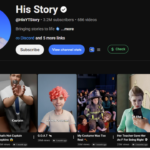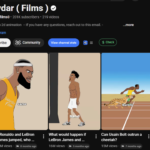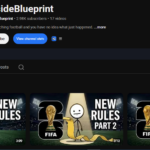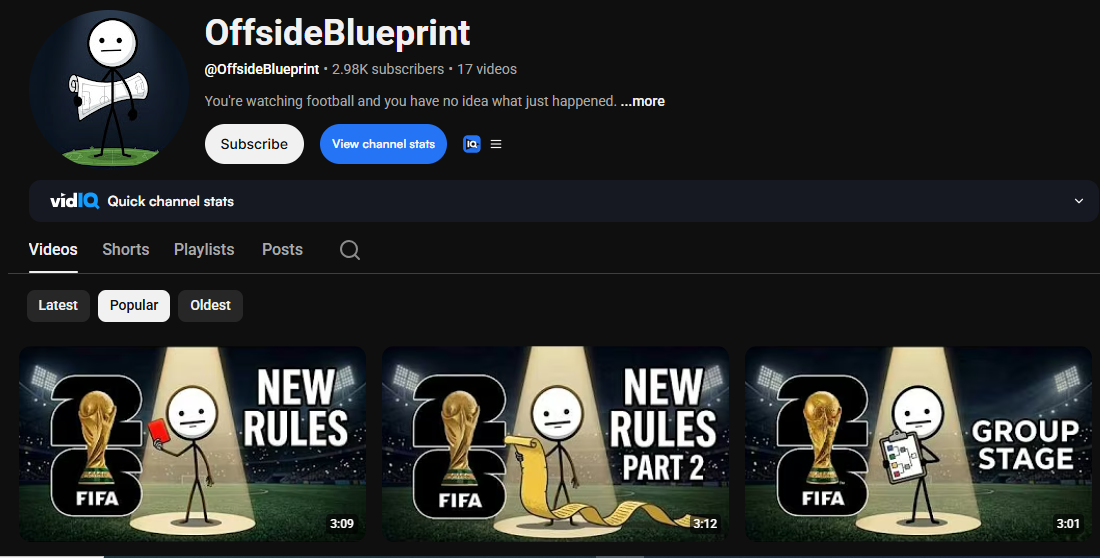
Brand-new YouTube channels are pulling 400,000+ views on a single video right now. Channels with zero subscribers. Zero history. Posted by people who have never made a video in their life. And they’re all doing the exact same thing: World Cup explainer videos.
One simple format, riding the biggest wave on the internet right now.
And before you click off thinking “I can’t do this” — you can. You don’t need to be on camera. You don’t need a single editing skill. You don’t even need to know football. No face, no voice, no experience. You make the entire video with AI, start to finish, in under an hour.
Why Brand-New Channels Are Blowing Up
Don’t believe me? Look at the proof:
- One channel started 2–3 weeks ago. One single video. Over 400,000 views.
- Another channel, a week old, first upload ever. 38,000 views.
These aren’t big creators with established audiences. These are dead-cold new accounts. So why are they exploding?
Because YouTube and FIFA officially teamed up for the 2026 World Cup — and that just made football the single hottest search topic on the entire platform. The algorithm is hungry for this content, and almost nobody is feeding it yet.
In this post, I’m handing you the exact step-by-step process: how to pick a topic that’s already trending, how to write the script in minutes, and how to generate the whole thing with AI — so you can publish your first World Cup explainer before you go to bed tonight.
⚠️ The catch: This window closes on July 19, when the tournament ends. Miss it and it’s gone. So don’t skip a single step.
Let’s get into it.
🎁 Grab the Free Prompts First
Everything below runs on a set of ready-made AI prompts. You don’t have to write a single one yourself — I’ve already done that part for you.
👉 Click here to get the free prompts
The moment you open it, you’ll find 4–5 ready-made prompts waiting for you. These are the exact prompts I use, and with just these you can generate a complete video from start to finish. No writing, no guesswork. Copy, paste, done.
Keep that doc open in a tab — we’ll come back to it at every step.
Step 1: Generate a Winning Topic
The topic is everything. Pick the wrong one and the video flops no matter how good it looks. So let’s get this right.
- From the prompt doc, copy Prompt #1.
- Head over to Claude AI — hands-down the best tool for this, because it doesn’t just guess.
- Paste the prompt in and hit enter.
Watch what it does: Claude actually goes out and searches the live web, looks at what’s trending around the World Cup right now, and hands you topic ideas with a real shot at going viral. Not random ideas — data-backed ones.
Within seconds, you’ll have ten viral-ready topics sitting right in front of you.
Don’t love one of them? Easy. Just ask Claude to rewrite it or give you fresh angles until something clicks. Once you’ve picked your winner, move to the next step.
Step 2: Write the Full Script in 20 Seconds
Now for the part that usually takes people hours.
- Go back to the prompt doc and grab Prompt #2 — the script-writing one. Copy the whole thing.
- Paste it into Claude AI.
- Look closely: inside the prompt there’s a section in brackets. That’s where your topic goes. Take the topic you picked in Step 1 and drop it into those brackets, replacing the placeholder.
- Hit enter and give it 15–20 seconds.
That’s it. Your full script is done — hook included, start to finish. Read through it top to bottom. The hook’s already built in, the structure’s there, everything’s ready to go.
Pro move: Copy your finished script and paste it into a blank Google Doc to keep it safe. We’ll need it again later for the voiceover.
Step 3: Turn Your Script Into Image Prompts
Script’s ready — now we turn it into visuals.
- Go back to the prompt doc and grab Prompt #3 — the script-to-image one. Copy it completely.
- Paste it into Claude AI and send it.
One of two things happens:
- If Claude asks for the first paragraph of your script, just paste it in.
- If it doesn’t ask, Claude automatically runs through every paragraph on its own.
Either way, it starts converting your script — line by line — into ready-to-use image prompts. In my case, my full script turned into 58 image prompts, one for every single scene. Every line of the video now has its own visual prompt, mapped out and ready.
Step 4: Generate the Images (Free)
For this we’re using a free tool called Pippit AI. Sign up, log in, and you’ll get free credits right away — completely free, no card needed.
Once you’re inside:
- Find the Choose Model box and click it. You’ll get a list of AI models — GPT Image, Nano Banana Pro, and more. Any of these work, so pick your favorite.
- Click Aspect Ratio and select 16:9 for a clean, widescreen YouTube video.
- Jump back to Claude AI, copy image prompt #1, paste it into Pippit, and hit the arrow.
Your first image generates in seconds — and each prompt gives you four options to choose from. Pick the best one and move on. Don’t like the result? Just regenerate until it’s right.
Then it’s rinse and repeat: copy prompt #2, paste, generate, pick. Prompt by prompt, all the way down your list.
When you’re done downloading: grab every image in PNG format with no watermark. That part matters — you don’t want a logo stamped across your video. Download them one by one, in order.
That’s the heaviest lifting of the whole video — done. From here, it’s all assembly.
Step 5: Create a Thumbnail That Gets Clicks
This might be the most important step of all. You can have the best content in the world, but if the thumbnail’s weak, nobody clicks.
- From the prompt doc, grab the last prompt — the thumbnail one. Copy it.
- Paste it into Claude AI. Inside there’s a bracket — that’s where your topic goes.
Pro tip: Use the same Claude chat you’ve been working in — the one that already gave you your topic and title. That way Claude already knows exactly what your video is about, so the thumbnail actually matches.
- Drop your topic in the bracket, leave the rest as-is, and send it.
In seconds, Claude hands you 4–5 ready thumbnail prompts. Copy thumbnail prompt #1, jump over to Pippit AI, paste it in, adjust the settings to your liking, and hit the arrow. Download it, and you’re done.
Step 6: Add an AI Voiceover
Remember that script we saved in a separate Google Doc? This is where it pays off. You’ve got two free tools to choose from:
Option 1 — ElevenLabs: Click Voices, browse the natural-sounding options, pick the one that fits your video, paste your script into the text box, and hit generate.
Option 2 — Fish Audio: Click Text to Speech, paste your script into the box, click Select Speaker → More to see the full voice list, pick one, click Use, then hit Generate.
Either way, your full voiceover is ready in a few seconds. Download it.
Script, images, thumbnail, voice — you’ve got everything. Now we bring it all together in the edit.
Step 7: Edit It All Together in CapCut
This is where it all comes together. Open CapCut, click Import, and bring in everything — all your images and your voiceover.
- Start with the voiceover. Drop it onto the timeline first — this is your backbone. Run through it and cut out any empty gaps or dead air so it flows clean.
- Layer your images on top. Bring in your first image, then match each one to the part of the voiceover it belongs to. If an image runs too long, trim it down so it lines up with what’s being said. Keep going down the line, syncing image to voice.
- Make it feel alive. Click Transitions and drop any of them between clips with one click. Then jump to Effects and add a few of your own. This is the magic step — it’s what turns a slideshow of static images into something that actually feels like a real video.
Once it’s looking good, hit Export and let CapCut render your final video.
And there it is — your finished World Cup explainer.
Don’t Wait — This Window Closes July 19
That’s the entire process: pick a trending topic, generate the script, turn it into images, add a voice, and edit it together — all with free AI tools, no face and no voice required.
The 2026 World Cup has made football the hottest topic on YouTube, and the algorithm is actively pushing this content. But the moment the tournament ends on July 19, this opportunity disappears.
So don’t overthink it. Grab the prompts, pick your topic, and publish your first video tonight.