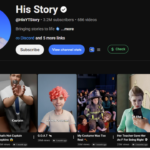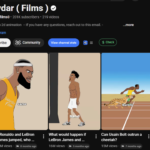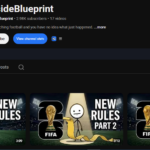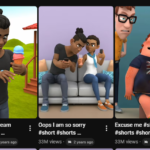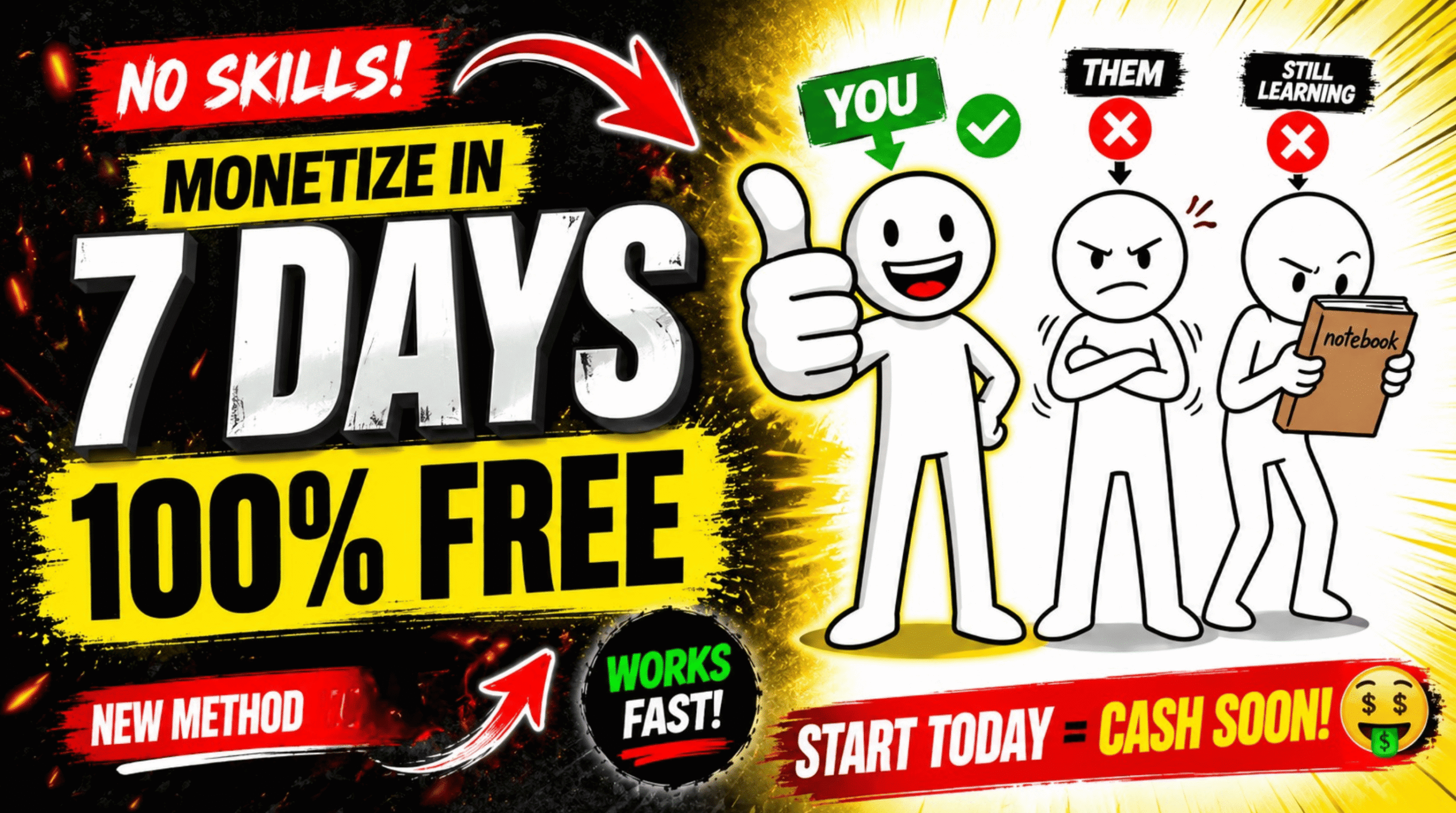
Faceless YouTube channels built around simple stick figure animation are exploding right now. Channels with only 39 videos sitting at 111K subscribers. First videos hitting 2.5 million views within a month. New channels earning $2,000 to $3,000 every single month — and none of them are showing their face, recording their voice, or paying for any software.
This guide walks you through the complete process of building one of these channels from scratch using three free AI tools — Claude AI, Meta AI, and Flow AI. No design skills required. No experience needed. By the end you’ll know exactly how to go from zero to a published, SEO optimised stick figure animation video.
Why Stick Figure Animation Channels Are Blowing Up Right Now
The format works because it is dead simple to consume. No complicated visuals, no talking head, no production overhead. Just clean animation, a clear voiceover, and a topic people are already searching for. YouTube’s algorithm doesn’t care how fancy your video looks — it cares about watch time and click through rate. Stick figure animation delivers both because it’s visually consistent and easy to follow.
Channels doing motivational content, educational breakdowns, and how-to videos in this format are going viral fast. And because the entire production process is now automated with AI, anyone can produce this content consistently enough to build a real channel.
What You Need Before You Start
- A Google account
- Google Chrome browser
- Claude AI — [free at claude.ai]
- Meta AI — [free at meta.ai]
- Flow AI — [free at flow AI link]
- VidIQ Chrome extension — [try for $1 at]
Step 1: Name Your Channel
Open the prompt pack Google Doc. Copy the first prompt — the channel name generator. Open Claude AI, paste the prompt in, and hit Generate. Claude will give you 10 channel name options instantly.
Pick a name that feels right for your niche and copy it. Open YouTube, click your profile icon in the top right, and click Create Channel. Paste your chosen name into the handle field. If it shows as unavailable, go back to Claude, copy the next name from the list, and try again. Once a handle is available, type the same name into the channel name field above it. Your channel name and handle are done.
Step 2: Generate Your Logo
Go back to the Google Doc and copy the second prompt — the logo generator. Paste it into Claude AI. You’ll see a bracket that says “channel name” — replace it with your actual channel name and hit Generate. Claude will produce a detailed logo description.
Copy that description and open Flow AI. Click New Project, paste the prompt in, click Settings, set the aspect ratio to 1:1, set the number of images to 2, and hit Generate. Download the logo you prefer.
Go back to YouTube, click Select Picture, then From Computer, upload your logo, and click Create Channel. Your channel is live.
Step 3: Create Your YouTube Banner
The banner process is identical to the logo. Go back to the Google Doc, copy the YouTube banner prompt, paste it into Claude AI, replace the bracket with your channel name, and hit Generate. Copy the output, go to Flow AI, paste it in, set the ratio to 16:9 this time, and generate. Download your banner and upload it in your YouTube channel settings.
Step 4: Find a Viral Topic
This is the most important step in the entire process. The wrong topic means zero views no matter how good your video is.
Go back to the Google Doc and copy prompt number four — the viral topic generator. Paste it into Claude AI and hit Generate. Claude will give you 10 topic ideas structured around what’s already performing in your niche.
Step 5: Validate Your Topic With VidIQ
Before you commit to any topic, verify it takes two minutes and can be the difference between 2.5 million views and 200.
Take the topic that feels most relevant, copy it, and paste it into the YouTube search bar. Install the VidIQ Chrome extension — [link in description] — and you’ll see the search volume and competition score appear on the right side of your screen for that exact keyword.
The rule is simple: high search volume plus low competition equals your topic. If the competition is high, move to the next topic on your list and check that one. Keep going until you find the right combination. That’s your green light.
Step 6: Write Your Complete Script With Claude AI
Go back to the Google Doc and copy prompt number five — the script generation prompt. Paste it into Claude AI, replace the bracket with your exact validated keyword, and hit Generate.
Claude will produce a complete word for word script — not bullet points, not an outline — written specifically for stick figure animation format. Wait for it to finish and copy the entire output. You don’t need to edit or reformat anything.
Step 7: Generate Your Voiceover With Fish Audio
Open Fish Audio — [link in description]. Sign up, log in, and you’ll receive free credits automatically. Click Text to Speech, then Select Speaker. Browse the AI voice options and pick one that fits your channel’s tone. Click Use.
Paste your full script into the text box and hit Generate. If your script is long and hits a character limit, split it in half, generate and download the first half, then come back for the second half. Click Download when it’s ready. Your voiceover is done without recording a single word yourself.
Step 8: Generate Image Prompts With Claude AI
Go back to the Google Doc and copy prompt number six completely. Paste it into Claude AI and hit Generate. Claude will ask you to provide your script — copy your full script, paste it in, and hit Submit.
Claude will break your entire script into around 20 image prompts, each one corresponding to a different scene in your video. If your script is long, Claude will give you the prompts in batches — click Continue to get the rest. Once all prompts are ready, copy them.
Step 9: Auto-Generate All Your Images With Flow AI
Install the image generation Chrome extension — [GET THE EXTENSION HERE: — add it to Chrome and pin it to your toolbar.
Open Flow AI. The extension panel will appear on the right side of your screen. Configure your settings: switch from Text to Video to Text to Image, set the aspect ratio to 9:16, select the highest image quality available, and leave auto-download on.
Paste all your image prompts into the prompt box. Important — if Claude numbered them as Prompt 1, Prompt 2, and so on, delete all the numbers before running. The extension reads each line as a separate prompt and any numbering will appear in your images.
Set images per prompt to one and hit Run. The extension will generate every image and download it automatically without any manual work. If any image fails it will retry and download automatically. Just let it run.
Step 10: Get Remaining Prompts and Generate Your Video Prompt
If Claude gave you image prompts in batches, go back and type “Next” to get the remaining ones. Generate and download those images the same way.
Once Claude has delivered all image prompts it will ask: “Should I generate the video prompt for you?” When you see that message, make sure all your images have finished downloading first. Then come back to Claude and type “Yes.”
Claude will generate a complete video conversion prompt — a detailed instruction that tells Meta AI exactly how to animate each image. Copy the entire output.
Step 11: Animate Your Images With Meta AI
Open Meta AI and click the Plus icon to upload your first image. Copy the first video prompt from Claude and paste it into Meta AI. Hit Generate. Your first animated clip will be ready in seconds.
Repeat for every image — upload the image, paste the corresponding video prompt, hit Generate. Work through them one by one until all your clips are done.
Step 12: Remove the Meta AI Watermark
When you go to download your clips you’ll notice Meta AI adds a watermark. Here’s how to remove it completely.
Install the watermark removal Chrome extension — [GET IT HERE: INSERT LINK] — add it to Chrome and pin it. You don’t need to open or configure it.
For each clip: instead of clicking the download button, click the Share button. A menu appears and you’ll see a red Meta AI download option — that’s the extension. Click it, a new window opens, and you download the clean watermark free version. Repeat for every clip.
Step 13: Edit Your Video in CapCut
Open CapCut and import all your video clips and your voiceover file together.
Drag your voiceover onto the timeline first — this is your foundation. Then bring your video clips in one by one and sync them to the voiceover so the visuals match what’s being said at each moment. Trim clips to fit, add transitions between scenes, layer in background music at low volume, and add any text overlays you want.
When everything looks and sounds right, click Export. CapCut renders and saves your finished video to your device.
Step 14: Generate Your SEO Title, Description and Hashtags
Go back to the Google Doc and copy prompt number seven — the SEO optimisation prompt. Paste it into Claude AI and hit Generate. Claude will produce a fully optimised title, description, hashtags, and timestamps formatted and ready to paste directly into YouTube.
Step 15: Create Your Thumbnail
Go back to the Google Doc and copy the last prompt — the thumbnail generator. Paste it into Claude AI, replace the bracket with the exact title Claude just generated for you, and hit Generate. Copy the thumbnail prompt output, go to Flow AI, paste it in, and generate. Download your thumbnail and it’s ready to upload.
The Complete Free Toolkit
| Tool | Purpose | Cost |
|---|---|---|
| Claude AI | Scripts, prompts, SEO | Free |
| Meta AI | Image to video animation | Free |
| Flow AI | Image generation | Free |
| Fish Audio | Voiceover generation | Free credits |
| CapCut | Video editing | Free |
| VidIQ | Keyword research | $1 trial |
| Prompt Pack | Complete workflow | Free — [GET IT HERE] |
Get Started Now
Everything you need is in the prompt pack. One Google Doc, every prompt in order, ready to copy and paste.